# Collection Banner
A **collection banner** in Shopify is a large image that appears at the top of a collection page. It serves as a visual introduction to the products within that collection, helping to set the tone and highlight key items.
{% hint style="success" %}
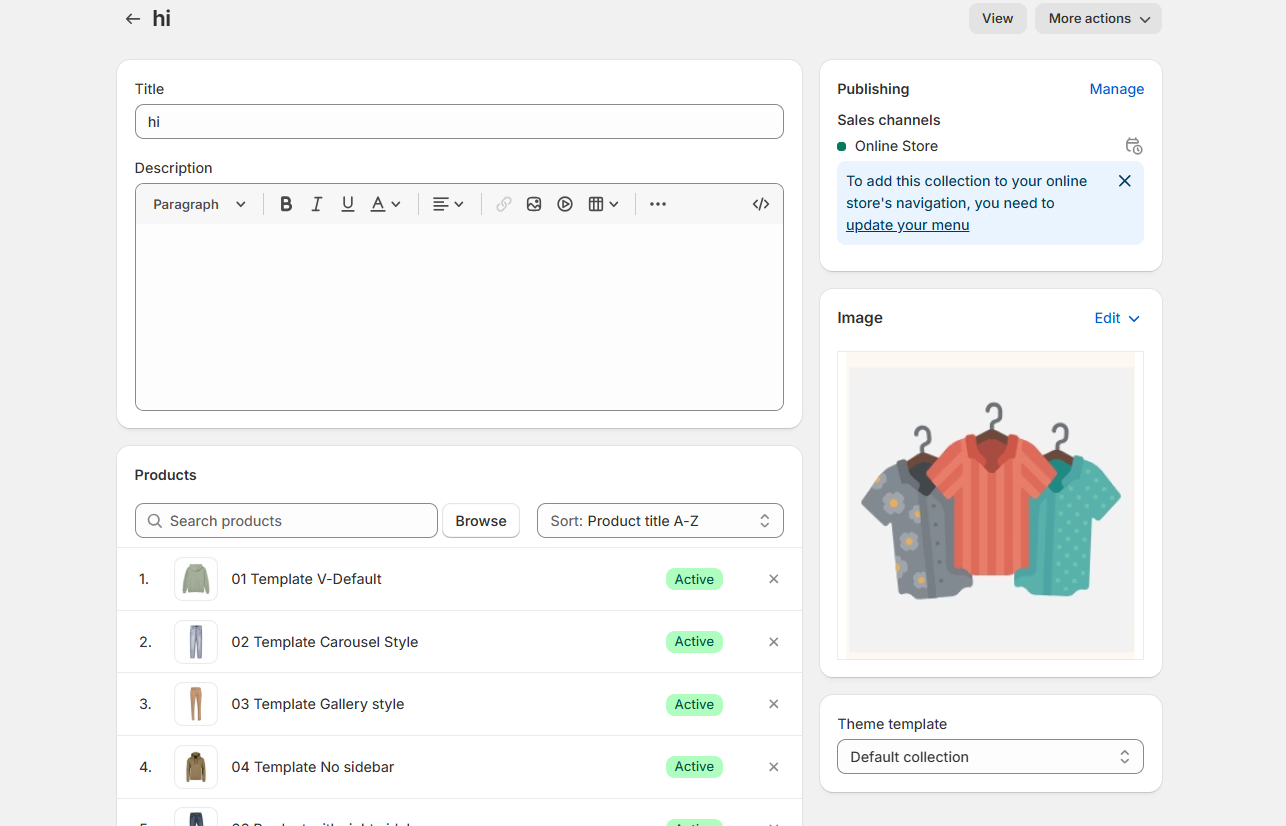
**Step 1 :** In your **Shopify admin,** > **Product > Collections.**
**Step 2 :** Select the collection you want to add a banner image.[**(creating collection)** ](https://designthemes.gitbook.io/medik/collections/creating-collections)
**Step 3 :** Scroll down to the "Collection image" section.
**Step 4 :** Click **"Add image"** and upload your banner image.
**Step 5 :** Click **"Save".**
{% endhint %}
{% hint style="info" %}
The created collection should be added with the image which will allows to show as **collection banner**
{% endhint %}
* **Go to** Shopify Admin > **Online Store > Themes**.
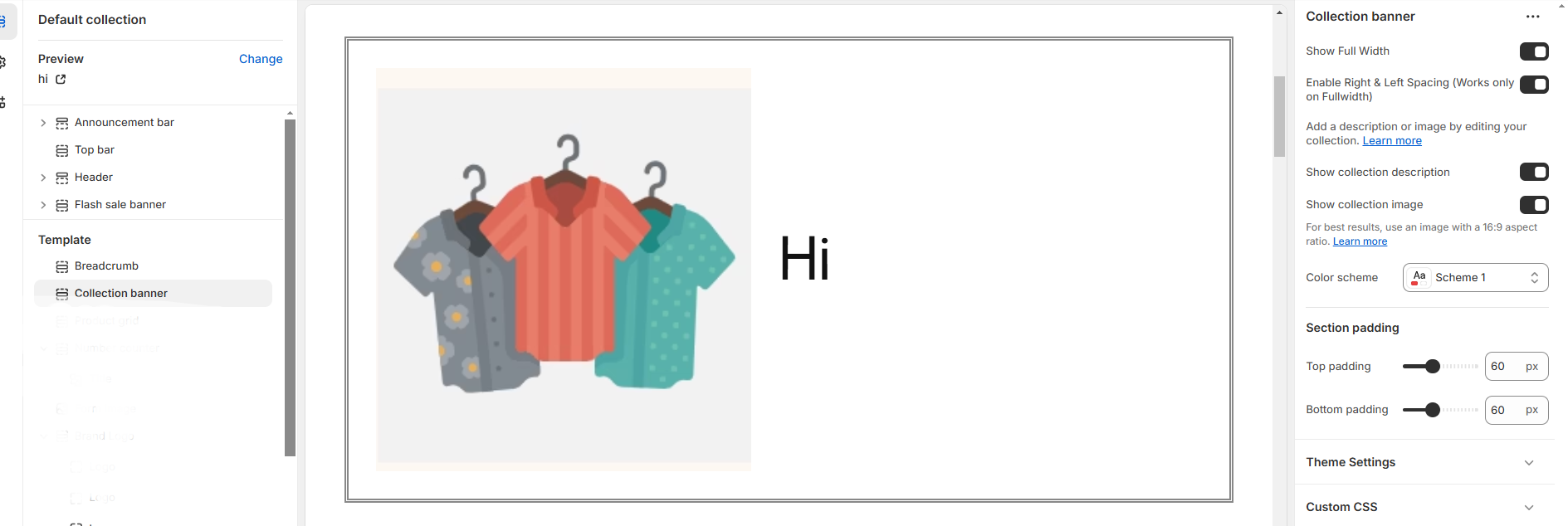
* Click **Customize** on your active theme > **Default collection > Click > Collection banner**
* **Show Full Width:** Expands the section across the entire screen width.
* **Right & Left Spacing :** Add **spacing** to the **Full Width** layout (applies in full-width mode).
* **Show collection description:**On enabling the toggle the collection description will be enabled
* **Show collection image:** On enabling the toggle the collection image will be enabled **.**
* **Color scheme :** You can customize the section’s appearance by changing the text color, background color, and more using preset color options.
* **Padding:** Top Padding and Bottom Padding are used to adjust the spacing above and below a section in Shopify, improving the layout and readability.